
AI
Glean
Roiva counts who uses Glean's Assistant each month, from Glean's Insights, as one total with no names.
What it answers
How many people use Glean's Assistant each month, against the time it saves on the tasks you timed
What Roiva reads
Glean's Insights for each calendar month: the number of people who used Glean's Assistant, every night for the current month, and on the first sync each month that began inside the 270 days Glean keeps. Roiva asks Glean to list no one, reads one count a month, and keeps no name or email. An AI agent (Claude) built Roiva's reading of Glean's Insights from Glean's published API reference, and it hasn't yet been checked against a live Glean instance.
Setup
A Glean Client API token with the INSIGHTS scope, made for a user who holds Glean's Insights Moderator role, and your Glean server instance
What you can measure with Glean
Time given back on the tasks you timed
People who used Glean's Assistant in the month × the timed tasks each does with it × the minutes your own time study found it saves × your blended rate, as freed capacity. Roiva supplies no tasks or minutes, so nothing is booked until your study sets them.
glean.users.monthly_active
Starts from the AI Assistant Rollout template
Against what the seats cost
Glean's seats are the initiative's cost, from Glean's invoice in your connected books or a recurring cost, so cash ROI sets them against the freed time once that becomes cash. Glean's API has no seat count, so enter the seats in your Glean contract by hand.
A worked month
A Glean Assistant rollout's month
Capacity Freed by an AI Assistant, from the AI Assistant Rollout template, for September
| People who used Glean's Assistant in the month | 240 | Glean |
| Timed tasks per user a month | 15 | Your figure |
| Minutes per task without Glean | 20 | Your time study |
| Minutes per task with Glean | 14 | Your time study |
| Blended hourly rate, fully loaded | $55 | Your figure |
240 × 15 × (20 − 14) ÷ 60 × $55
$19,800 freed capacity for September, reported beside cash ROI, never in it
240 people used Glean's Assistant in September, each counted once. People who only searched with Glean aren't among them, so it's lower than Glean's own monthly active users, which count any activity over a rolling 28 days. Only tasks your time study timed count, however often people use the Assistant for anything else.
Illustrative figures. Roiva keeps every input with the entry it calculates, and none of it counts until it's approved.
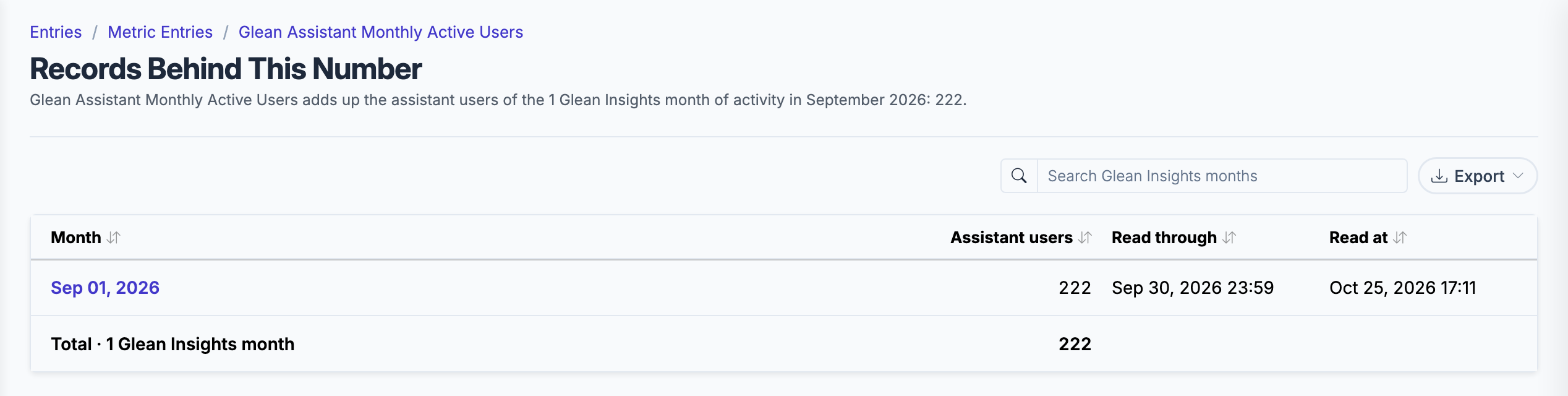
The record behind a month's Glean Assistant users: one count from Glean's Insights, with no one named.
What gets synced
Roiva writes these metric observations on each sync. Reference the key in a value formula to use this data in your ROI calculations.
Glean Insights
glean.users.monthly_active
Monthly Glean Assistant Users
count
What Roiva keeps
Reads: Glean's Insights overview for each calendar month, asked for with per-user Insights turned off, so that it lists no one. Roiva reads only the number of people who used Glean's Assistant and keeps no name or email.
Keeps: Records of Glean Assistant users by month, plus the totals worked out from them.
How to connect
You connect Glean from inside Roiva, so you need a Roiva workspace first. Sign in to connect it now. New to Roiva? Start free with your work email, take the free assessment and create your workspace at the end, or request an invite.
- In Glean: As a Glean admin, open the About Glean page (app.glean.com/admin/about-glean) and copy the Server instance (QE), such as mycompany-be.glean.com
- In Glean: Go to Client API Token Settings (app.glean.com/admin/platform/tokenManagement?tab=client), click Add New Token, and make a user-scoped token (not a global one) with the INSIGHTS scope, for a user who holds Glean's Insights Moderator role. A token's scopes can't be changed once it's made. Super Admins can make one for any user; Admins and API Token Creators only for themselves
- Back in Roiva: Enter the Server instance, paste the token as the API key, and save the connection
- Back in Roiva: The connection page checks each step and says what's missing. Once it's all ticked, click Test Connection, then link this connection to an initiative on the Initiatives tab
Need help?
Email hello@roiva.ai with what you're seeing, and you'll hear back within one business day.
Glean
Start free, then connect Glean once your workspace is set up. Or begin with the free AI ROI exposure assessment.
Start free → Sign in to connectRelated integrations