

Data
Looker
Roiva runs the saved Looker Looks you name and turns their numbers into monthly readings, so a figure your team already reports can price an AI initiative.
What it answers
What an AI initiative is worth, measured by a figure your team already reports in Looker
What Roiva reads
The saved Looks an initiative names, run as the API user. Roiva keeps only each result's numbers, by month and column, and drops its text columns.
Setup
A Looker service account with see_looks on the models your Looks use
What you can measure with Looker
A Look as a metric
Name a saved Look where you link it to the initiative, and every numeric column becomes a monthly reading, dated by the Look's own month column.
looker.looks.field_value
In your own formula
Reference a Look's column in a value formula, and the figure your dashboards already show prices the initiative, with no number typed in by hand.
Before and after, from history
A Look that reaches back before go-live gives the initiative its baseline from the same report, measured the same way.
A missing Look, said plainly
If a Look is deleted or the service account loses access, the sync carries on with the others and counts the one it couldn't run as failed.
A worked month
AI-handled tickets, read from an existing support Look
Your own formula, reading a saved Look's monthly figure, for September
| Tickets AI handled in September, from the support Look | 610 | Looker |
| Cost per ticket | $8.75 | Your time study |
610 tickets × $8.75
$5,337.50 freed capacity for September, reported beside cash ROI, never in it
The Look's definition is your team's, so the figure means what your dashboards already mean by it. Roiva records which Look and column each reading came from.
Illustrative figures. Roiva keeps every input with the entry it calculates, and none of it counts until it's approved.
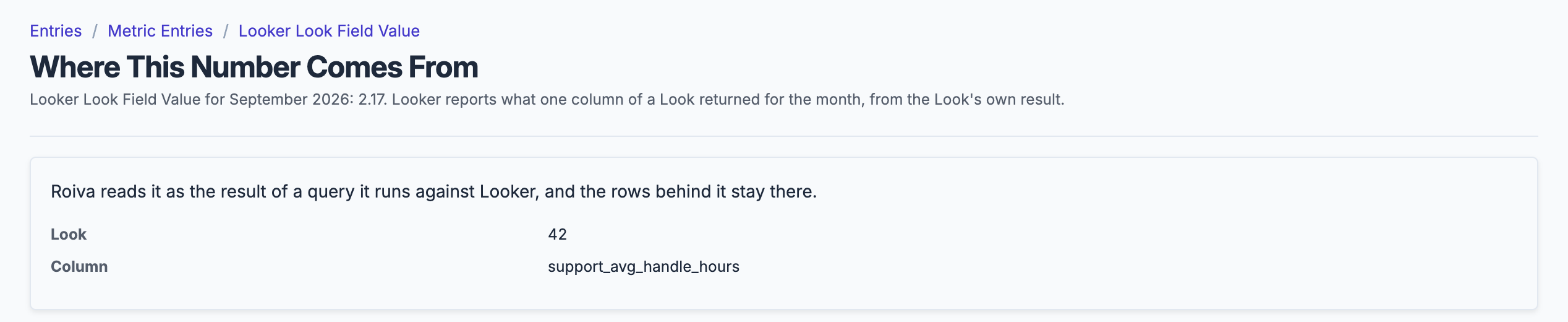
A Look's figure in Roiva names the Look and column it came from; the rows behind it stay in Looker.
What gets synced
Roiva writes these metric observations on each sync. Reference the key in a value formula to use this data in your ROI calculations.
Looks
looker.looks.field_value
Per-Look field value (one row per Look column, the Look and the column in the row's dimensions)
count
What Roiva keeps
Reads: The saved Looks an initiative names, each run as the API user. Roiva keeps only each result's numbers, by month and column, and drops its text columns.
Keeps: Totals only, such as a month's count or spend. No record is kept.
How to connect
You connect Looker from inside Roiva, so you need a Roiva workspace first. Sign in to connect it now. New to Roiva? Start free with your work email, take the free assessment and create your workspace at the end, or request an invite.
- In Looker: Go to Admin → Users, click Add → Service Account, and name it Roiva. Leave Create default set of API credentials on, and give it a role with see_looks on the models your Looks use
- In Looker: Open the service account from the Service Accounts tab, click Manage under API Keys, and copy the client ID and secret
- Back in Roiva: Enter your Looker API host in the Instance URL field: the API Host URL on Admin → API if one is set, otherwise your instance URL (e.g. https://yourcompany.cloud.looker.com), keeping :19999 if your instance uses it
- Back in Roiva: Paste the API credentials in the format client_id:client_secret and save the connection
- Back in Roiva: The connection page checks each step, including every Look an initiative names, and says what's missing. Once it's all ticked, click Test Connection
- Back in Roiva: Link this connection to an initiative on the Initiatives tab, then add a Filter with key look_ids and the IDs of the Looks to sync (comma-separated, e.g. 42,57)
Need help?
Email hello@roiva.ai with what you're seeing, and you'll hear back within one business day.
Looker
Start free, then connect Looker once your workspace is set up. Or begin with the free AI ROI exposure assessment.
Start free → Sign in to connectRelated integrations

